PDF-Ausschluss - Start
PDF-Ausschluss - Ende
PlantUML ist eine textbasierte Beschreibungssprache, mit der sich Diagramme wie Abläufe, Sequenz- oder Klassendiagramme allein durch Code erstellen lassen, ohne Formen von Hand zu zeichnen.
PlantUML Diagramm anlegen
So fügen Sie PlantUML-Code im Drawio-Editor ein:
- Erstellen Sie zuerst ein neues leeres Diagramm (siehe Anleitung Drawio-Editor einbinden)
- Wählen Sie im geöffneten Drawio-Editor "Einfügen" und danach "Erweitert".
- Klicken Sie auf "PlantUML …."
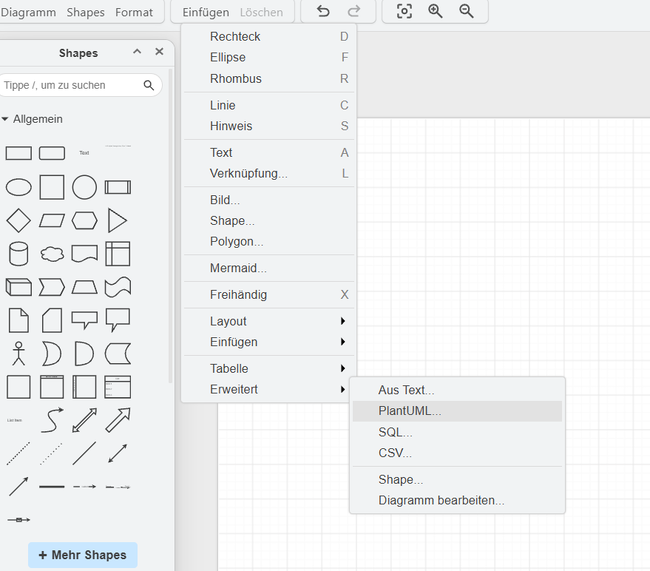
PlantUML Menüpunkt - Geben Sie im Dialogfenster den PlantUML-Code ein. Beispiel Bestellprozess:
@startuml Bestellprozess autonumber 1 "0" skinparam BoxPadding 10 skinparam ParticipantPadding 10 skinparam RoundCorner 6 skinparam SequenceMessageAlign center skinparam Shadowing false skinparam sequence { ArrowColor #2C3E50 LifeLineBorderColor #34495E LifeLineBackgroundColor #F8F9FA ParticipantBackgroundColor #EBF5FB ParticipantBorderColor #2980B9 ParticipantFontColor #2C3E50 ParticipantFontSize 13 } ' --- TEILNEHMER --- actor "Kunde" as Kunde #ActiveCaption box "Webseite + API" #F4F6F7 participant "Frontend" as UI participant "Gateway" as GW end box box "Kern-System" #EAEDED participant "Bestellung" as Service database "Datenbank" as DB #D5F5E3 end box ' --- ABLAUF --- Kunde -> UI : Button "Jetzt kaufen" klicken activate UI UI -> GW : POST /order (Warenkorb) activate GW GW -> Service : Bestellung anlegen activate Service Service -> DB : Daten speichern activate DB DB --> Service : Bestätigt deactivate DB Service --> GW : HTTP 201 (Erstellt) deactivate Service GW --> UI : Erfolg zurückgeben deactivate GW UI --> Kunde : Bestätigung anzeigen deactivate UI @endum - Klicken Sie im Dialog auf "Anwenden".
- Wichtig! Speichern Sie das Diagramm über die Schaltfläche "Speichern".
- Klicken Sie anschließend auf "Beenden".

Ausgabe:




